Database Exports
In RFgen 5.2.5.0 and higher, Database Exports feature was removed and replaced with Sync Tables.
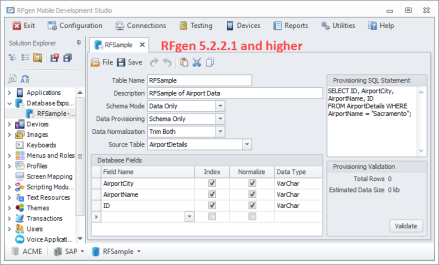
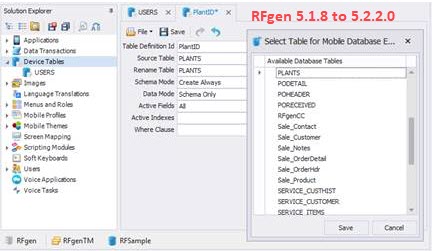
The Solution Explorer > Database Exports feature (previously called "Device Tables) allows you to preconfigure data tables for export to a Profile where they can be downloaded and used when the client is in batch or offline mode. For example, if the user is collecting data on an oil rig in the middle of the Pacific ocean, and the client has no connection to the company's network, the application can still access and list the specific ERP data that's needed to process a business task if the client's profile contains the database and tables required for the task.
You can setup an empty database or a database with the desired table(s), and also specify how it will be provisioned on the device.
For more details, see To add a database for export to client.
The Table Name is the name or identification of the table to be exported.
The Description is a required field describing your table.
Schema Mode sets how the table will be created. There are three options: Data Only, Create Always (default) and Create on Change.
- Data Only means that RFgen will not create the table at all. It must exist in the database already. The Data Mode property will determine how the data is filled in.
- Create Always means if the table already exists, it will be deleted and recreated on the mobile database.
- Create on Change means that the existing table schema on the mobile database will be compared to the equivalent table schema on the server. If there is a difference, the existing table schema on the mobile database will be replaced with the updated table schema from the server.
Data Provisioning specifies how the data will be replaced when the client profile is reprovisioned. The options are: Clear and Copy (default), Copy Only and Schema Only.
- Clear and Copy will delete the contents of the table and re-populate it with the new data from the server.
- Copy Only will place the data from the server on top of the existing data. Where it is the same, there is no change. Where it is different and depending on the keys, either it will overwrite data or insert new records.
- Schema Only will always send an empty table to the mobile database.
Data Normalization removes leading or trailing white spaces. The options are: Trim Left, Trim Right, Both, or None.
Source Table lists the table in the database (or data spource) referenced through the Solution Explorer > Connections menu. This field is a drop down list of connected databases which will display the fields (columns/rows) in the Database Fields below it.
Database Fields
Use this area -- Field Name, Index, Normalize to list the fields (columns and/or rows) to be included in the table that will be exported to the client. Specifying the field(s) reduces the volume of data that will be installed to the client.
- To add a field, click on the drop down list.
- To delete a field, right click on the row and tap the Delete button from your keyboard.
Index Checkbox - If this is checked, RFgen indexes this field and makes data retrieval more efficient on the client. If unchecked, the field is not indexed.
Normalization Checkbox - If this is checked, RFgen will trim the data in the field according to the value specified above. All checked items will follow the same rule specified under Data Normalization.
Data Type - This column is for display-only purposes, and will show the field's data type.
Provisioning SQL Statements
To further enhance performance, you can enter a SQL query statement here. For example, if the table is going to be exported to client where the user collects data at a specific location you can enter your query here so the value is readily available.